Enforce multi-factor verification for users (Best Practice 6/10)

Enabling two-factor authentication should be the standard and perhaps it should be enforced as the minimum requirements for authentication for any cloud service. Password are not safe, and users keeps making the same mistakes protection and securing their password.

I highly recommend that you require two-step verification for all of your users. This includes administrators and others in your organization who can have a significant impact if their account is compromised.

There are multiple options for requiring two-step verification. The best option for you depends on your goals, the Azure AD edition you’re running, and your licensing program. There are numerous options in Azure AD. From using the build-in option included in the regular subscription, to using Azure Multi-factor authentication server for on-premise services or using a third part solution such as DOU, VIPAccess, Okta, or RSAID with Federation.

Enable Conditional Access for cloud access. (Best Practice 5/10)

As an IT admin we are always challenge with users trying to access the cloud resources from multiple devices and locations. We need to make sure that these devices meet our standards for security and compliance. Just focusing on who can access a resource is not enough anymore.

To balance security and productivity, we need to think about how a resource is accessed before we can make a decision about access control. With Azure AD Conditional Access, we can address this requirement. With Conditional Access, we can make automated access control decisions based on conditions for accessing your cloud apps.

Best practice: Manage and control access to corporate resources. I recommend configuring Azure AD Conditional Access based on a group, location, and application sensitivity for SaaS apps and Azure AD–connected apps.

Best practice: Block legacy authentication protocols. Attackers exploit weaknesses in older protocols every day, particularly for password spray attacks. Configure Conditional Access to block legacy protocols.

Auto-Enroll AD joined computers into Microsoft Intune using local GPOs and AADConnect

Many have asked me about the option on how to automatically enroll AD computer (Hybrid domain joined) in Intune MDM.

Let’s assume the following as a main pre-requisite

  • The computer are AD-joined PCs running Windows 10, version 1709 or later
  • The enterprise has configured a mobile device management (MDM) service (Intune is enabled)
  • Devices are synchronized with Azure Active Directory
  • The device should not already be enrolled in Intune using the classic agents (devices managed using agents will fail enrollment with error 0x80180026)

So now, it is time to add those synced computer objects, that should be appearing in your Azure subscription, to your MDM service. For this process we will use a GPO setting.

If you do not see the policy, it may be because you don’t have the ADMX installed for Windows 10, version 1803 or version 1809. To fix the issue, follow these steps:

  1. Run GPEdit.msc
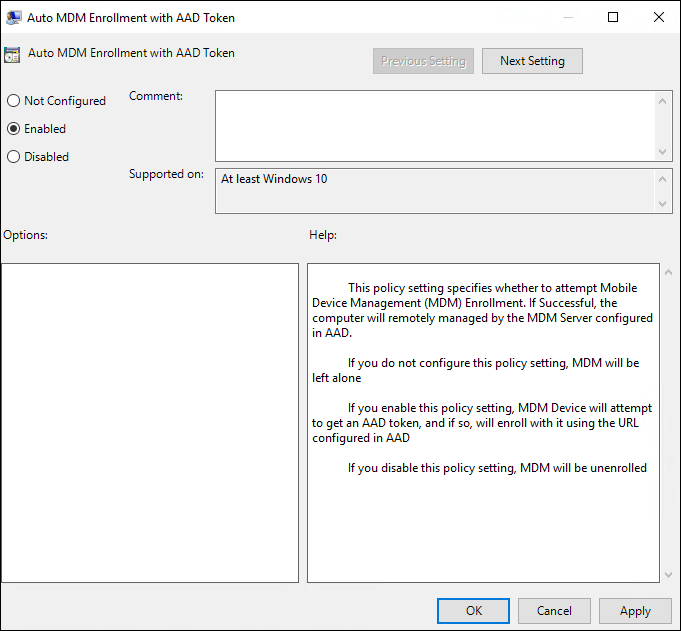
  2. Create a Group Policy Object (GPO) and enable the Group Policy Computer Configuration > Policies > Administrative Templates > Windows Components > MDM > Enable automatic MDM enrollment using default Azure AD credentials.


    • If you do not see the policy, it may be because you don’t have the ADMX installed for Windows 10, version 1803 or version 1809. To fix the issue, follow these steps
    • Download: 1803 –>Administrative Templates (.admx) for Windows 10 April 2018 Update (1803) or 1809 –> Administrative Templates for Windows 10 October 2018 Update (1809).
    • Install the package on the Primary Domain Controller (PDC).
    • Navigate, depending on the version to the folder: 1803 –> C:\Program Files (x86)\Microsoft Group Policy\Windows 10 April 2018 Update (1803) v2, or
      1809 –> C:\Program Files (x86)\Microsoft Group Policy\Windows 10 October 2018 Update (1809) v2
    • Copy policy definitions folder to C:\Windows\SYSVOL\domain\Policies.
    • Restart the Primary Domain Controller for the policy to be available. This procedure will work for any future version as well
  1. Create a Security Group in your PC and all the computer (PCs) you would like to add to Intune.
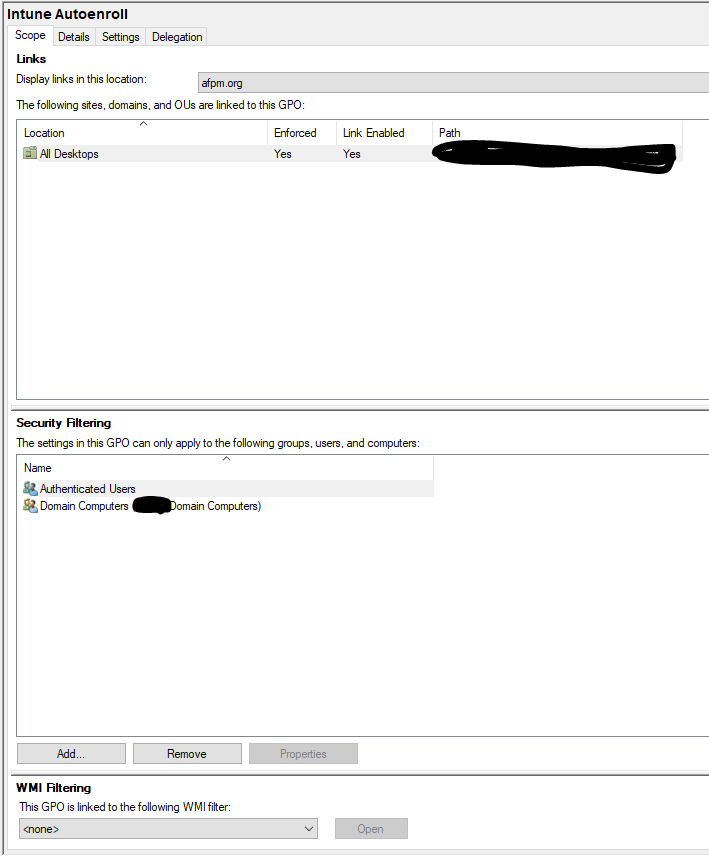
  2. Link the GPO to the device OU
  3. Filter the GPO using Security Groups (Adding the new group created)
  4. Enforce a GPO link to the OU

Computer will start showing up in the Intune portal as enrolled in MDM.