Auto-Enroll AD joined computers into Microsoft Intune using local GPOs and AADConnect

Many have asked me about the option on how to automatically enroll AD computer (Hybrid domain joined) in Intune MDM.

Let’s assume the following as a main pre-requisite

  • The computer are AD-joined PCs running Windows 10, version 1709 or later
  • The enterprise has configured a mobile device management (MDM) service (Intune is enabled)
  • Devices are synchronized with Azure Active Directory
  • The device should not already be enrolled in Intune using the classic agents (devices managed using agents will fail enrollment with error 0x80180026)

So now, it is time to add those synced computer objects, that should be appearing in your Azure subscription, to your MDM service. For this process we will use a GPO setting.

If you do not see the policy, it may be because you don’t have the ADMX installed for Windows 10, version 1803 or version 1809. To fix the issue, follow these steps:

  1. Run GPEdit.msc
  2. Create a Group Policy Object (GPO) and enable the Group Policy Computer Configuration > Policies > Administrative Templates > Windows Components > MDM > Enable automatic MDM enrollment using default Azure AD credentials.

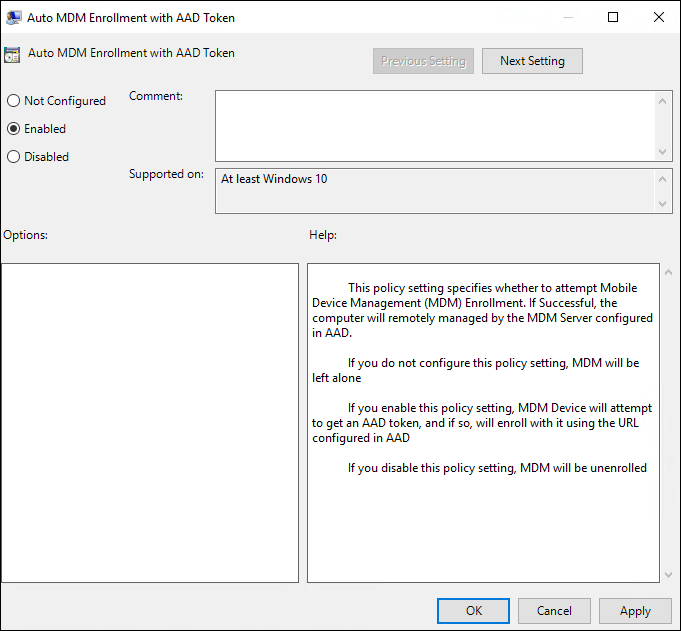
  

    • If you do not see the policy, it may be because you don’t have the ADMX installed for Windows 10, version 1803 or version 1809. To fix the issue, follow these steps
    • Download: 1803 –>Administrative Templates (.admx) for Windows 10 April 2018 Update (1803) or 1809 –> Administrative Templates for Windows 10 October 2018 Update (1809).
    • Install the package on the Primary Domain Controller (PDC).
    • Navigate, depending on the version to the folder: 1803 –> C:\Program Files (x86)\Microsoft Group Policy\Windows 10 April 2018 Update (1803) v2, or
      1809 –> C:\Program Files (x86)\Microsoft Group Policy\Windows 10 October 2018 Update (1809) v2
    • Copy policy definitions folder to C:\Windows\SYSVOL\domain\Policies.
    • Restart the Primary Domain Controller for the policy to be available. This procedure will work for any future version as well
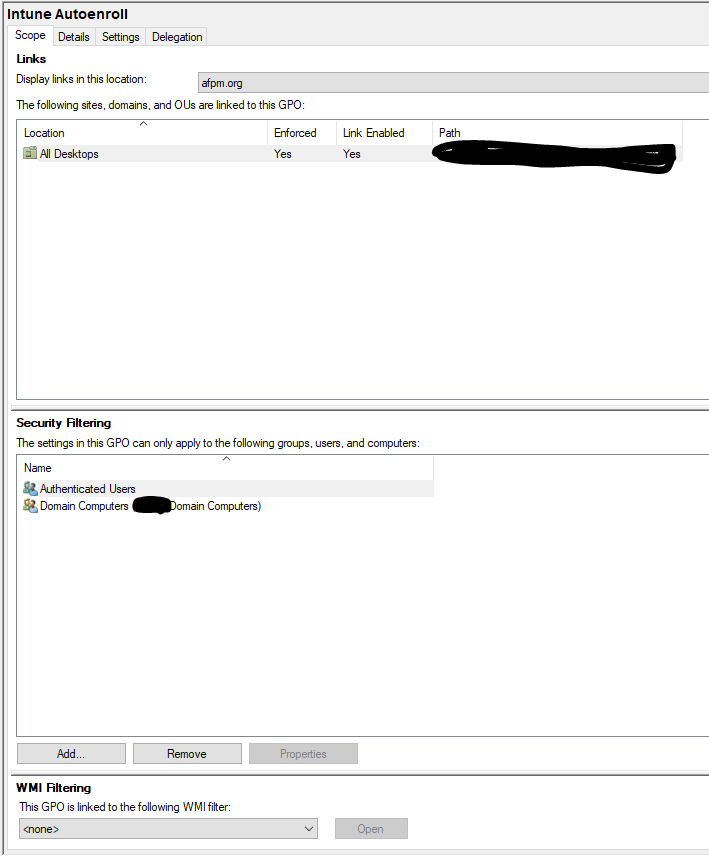
  1. Create a Security Group in your PC and all the computer (PCs) you would like to add to Intune.
  2. Link the GPO to the device OU
  3. Filter the GPO using Security Groups (Adding the new group created)
  4. Enforce a GPO link to the OU

Computer will start showing up in the Intune portal as enrolled in MDM.


Directory Requirement for Exchange Hybrid Using Okta SSO

This week I have been supporting client that already has a Office365 Tenant with account synchronized using Okta Universal Sync. The client would like migrate the mailboxes and stablish an Exchange Hybrid.  While the client requested that they wanted to avoid using AADConnect and would like to keep using Okta Universal Sync. There are some consideration we need to take into account.

  1. Microsoft does not support an Exchange Hybrid deployment that does not have AADConnect (DirSync legacy) to syncronize the AD objects.
  2. Okta does not recommend using the Okta Universal Sync if there is a hybrid Exchange.
  3. Okta can still be used as the authentication/federation platform.

From Okta Documentation (Okta Office 365 Deployment Guide)

“It is important to note that if another technology is performing the synchronization of accounts to Office 365, and Okta is handling the federation for authentication, you need to ensure the Okta account usernames match the Office 365 usernames. This can easily be configured in Okta using Universal Directory attribute expression, this is described later in this document. During migration to Office 365, some organizations find the need to instantiate an Exchange Hybrid configuration. in doing so, it is likely that you have one of Microsoft’s technologies performing part of the directory synchronization, DirSync, AADConnect or Forefront Identity Manager (FIM). Whilst in these Hybrid deployments, Okta cannot replace the need for these tools and instead can be
used directly alongside for single sign-on and role and license management.”

Enabled the functionality of Conditional Access (Best Practice 3/10)

The idea of the cloud is to allow users to access the resources by using a variety of devices and apps from anywhere at any time. Since the perimeter of the network is no longer the edge but the identity, IT administrators face the challenges, therefore controlling the devices and making sure that these devices meet the standards for security and compliance, is a very effective way to protect the cloud implementation.

The trade between security and productivity here plays an important role. IT admins need to think about how a resource is accessed before they can make a decision about access control. With Azure AD Conditional Access, IT administrators can address this requirement. With Conditional Access, IT admins can make automated access control decisions based on conditions for accessing your cloud apps.

Best practice: Manage and control access to corporate resources. Configure Azure AD Conditional Access based on a group, location, and application sensitivity for SaaS apps and Azure AD–connected apps.

Best practice: Block legacy authentication protocols. Attackers exploit weaknesses in older protocols every day, particularly for password spray attacks. Configure Conditional Access to block legacy protocols. See the video Azure AD: Do’s and Don’ts for more information.

Image result for conditional access


*Image from Official Microsoft Website – Credit: https://docs.microsoft.com/en-us/azure/active-directory/conditional-access/overview

Types of conditions:

  • Sign-in risk: Azure AD Identity Protection detects sign-in risks. How do you restrict access if a detected sign-in risk indicates a bad actor? What if you would like to get stronger evidence that a sign-in was performed by the legitimate user? What if your doubts are strong enough to even block specific users from accessing an app?
  • Network location: Azure AD is accessible from anywhere. What if an access attempt is performed from a network location that is not under the control of your IT department? A username and password combination might be good enough as proof of identity for access attempts from your corporate network. What if you demand a stronger proof of identity for access attempts that are initiated from other unexpected countries or regions of the world? What if you even want to block access attempts from certain locations?
  • Device management: In Azure AD, users can access cloud apps from a broad range of devices including mobile and also personal devices. What if you demand that access attempts should only be performed with devices that are managed by your IT department? What if you even want to block certain device types from accessing cloud apps in your environment?
  • Client application: Today, you can access many cloud apps using different app types such as web-based apps, mobile apps, or desktop apps. What if an access attempt is performed using a client app type that causes known issues? What if you require a device that is managed by your IT department for certain app types?