Enabling Access to AI Agent Inventory in Microsoft Defender XDR Using Unified RBAC

As enterprises rapidly adopt AI technologies, one of the most common questions I receive from customers is:

“Why can I see AI Agents in Microsoft Defender XDR when I’m a Global Administrator, but my security analysts can’t see them with their normal security role?”

The answer is usually not a bug.

It’s a Microsoft Defender Unified RBAC configuration issue.

As organizations deploy Microsoft Copilot Studio, Microsoft AI Foundry, custom AI applications, and endpoint-based AI tools, security teams need visibility into AI assets without granting excessive administrative privileges. However, many organizations discover that users assigned custom Unified RBAC (URBAC) roles cannot access the new AI Agent inventory experience available in Microsoft Defender XDR.

The good news is that this can be resolved while maintaining a least-privilege security model.

Why AI Asset Visibility Matters

AI is quickly becoming another critical enterprise asset category, alongside identities, devices, applications, and cloud resources. Security teams increasingly need visibility into Microsoft Copilot Studio agents, Local AI engines, Shadow AI activity.

Without visibility, organizations may struggle to answer basic governance and security questions:

  • What AI tools are being used?
  • Are any AI applications unmanaged?
  • Which AI assets have security risks?
  • Are employees using unauthorized AI tools?
  • How can security teams investigate AI-related activity?

To address these challenges, Microsoft Defender XDR now provides dedicated AI inventory capabilities.


Understanding the AI Agent Inventory

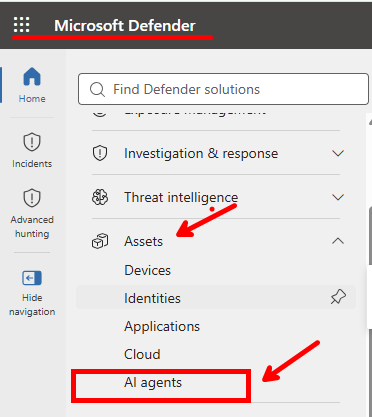
Within Microsoft Defender XDR, administrators can navigate to:

Assets → AI Agents

This experience provides a centralized inventory of AI assets discovered across the environment.

The inventory currently includes two major categories of AI resources:

Cloud AI Agents

These are cloud-managed AI agents deployed through platforms such as:

  • Microsoft Copilot Studio
  • Microsoft AI Foundry
  • Organizational AI services
  • Enterprise-developed AI assistants

Security teams can use this inventory to understand ownership, deployment status, security posture, and exposure risk across cloud-based AI implementations.

Local AI Agents

The Local Agents experience focuses on AI tools discovered directly on managed endpoints through Microsoft Defender for Endpoint.

These may include:

  • AI chat applications
  • Local AI engines
  • Open-source AI tools
  • AI development frameworks
  • Endpoint-based generative AI software

This visibility is especially valuable for identifying potential shadow AI activity that may otherwise go unnoticed.


What Security Teams Can Do With AI Agent Inventory

The AI Agent inventory provides much more than a simple asset list.

It enables security teams to:

Discover Shadow AI

One of the biggest challenges organizations face today is uncontrolled AI adoption. Employees often experiment with AI tools before security or governance teams become aware of them. Defender helps identify these tools and bring them under governance.

Monitor Enterprise AI Usage

Organizations can better understand how AI technologies are being used across departments, workloads, and managed devices.

Investigate AI Security Risks

Security teams gain visibility into AI-related risks, exposure paths, and investigations that may be associated with AI assets.

Perform Advanced Hunting

Analysts can correlate AI-related activity through Advanced Hunting, allowing deeper investigation of security events involving AI systems.

Assess AI Security Posture

By integrating AI assets into Microsoft’s security ecosystem, organizations can evaluate security findings, configurations, and exposure indicators related to AI deployments.


The Most Common Cause of Missing AI Agent Visibility

Many organizations have invested significant effort in deploying custom Unified RBAC roles. These custom roles are often designed for:

  • Security Operations Centers (SOCs)
  • Threat hunters
  • Incident response teams
  • Security engineering teams
  • Cybersecurity analysts

The goal is clear, to provide only the permissions required for the job. However, many customers discover that users assigned these custom roles cannot access the AI Agents experience even when they have permissions for Microsoft Defender. A common symptom looks like this:

  • Analyst cannot see AI Agents.
  • Security engineer cannot see AI Agents.
  • Administrator elevates to Global Administrator.
  • AI Agents immediately become visible.

This behavior typically indicates that the Unified RBAC role is missing one or more required permissions or data source assignments.


The Missing Configuration Most Organizations Overlook

In my experience, the issue is rarely the role itself. The most common oversight is that the role assignment does not include the required:Security for AI data source.

Even if analysts possess appropriate Defender permissions, access to AI inventory information is dependent on the correct data source assignment.

Without it, users may experience:

  • Missing AI Agent tabs
  • Incomplete AI inventory views
  • Missing AI posture information
  • Limited AI investigation capabilities

Recommended Unified RBAC Permissions

For security analysts and investigators, the custom role should include at minimum:

Permission AreaAccess
Device Inventory / Asset ManagementRead
Advanced HuntingRead
Vulnerability ManagementRead

These permissions provide:

  • AI asset visibility
  • Investigation capabilities
  • Security posture insights
  • Advanced Hunting access

Most importantly, they allow analysts to perform their jobs without requiring broad administrative privileges.


Don’t Forget the Security for AI Data Source

After validating permissions, review the role assignment itself.

Navigate to:

Microsoft Defender Portal

→ System → Permissions → Roles → Select Custom Role → Assignments → Create Assignment → Data and Scope
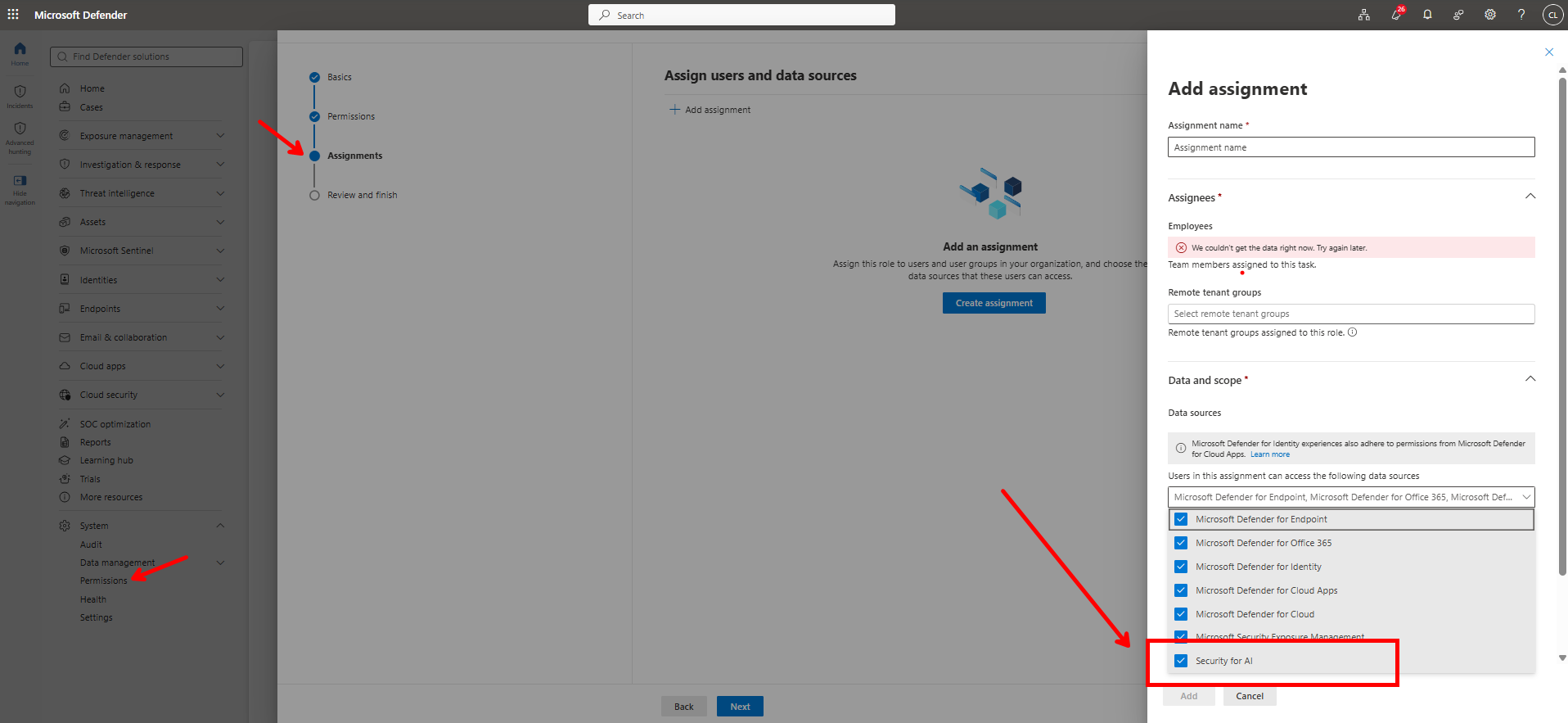
During configuration, verify that the following data source is enabled:

✅ Security for AI

This setting is essential.

Without this assignment, users may have all necessary Defender permissions and still be unable to access AI inventory data.


The Security Outcome Organizations Want

After the role is properly configured, users should be able to access: Assets → AI Agents

without requiring assignment to:

  • Global Administrator
  • Security Administrator
  • AI Administrator

Final Thoughts

As AI becomes embedded into every business process, AI asset visibility is quickly becoming as important as endpoint visibility, identity visibility, and cloud workload visibility. Organizations should regularly review their Microsoft Defender Unified RBAC configurations to ensure the right teams have access to AI security insights without relying on highly privileged administrative roles.

If your analysts cannot see the AI Agent inventory experience, start by verifying three things:

  1. Required Defender permissions are assigned.
  2. Appropriate role assignments exist.
  3. The Security for AI data source is enabled.

In many environments, resolving these three configuration areas immediately restores AI Agent visibility and helps security teams govern AI adoption with confidence. As AI continues to transform the enterprise, maintaining visibility, governance, and security around AI assets will become a foundational responsibility of every modern SOC.

Understanding the Microsoft Defender Platform vs. Engine Update Mismatch – Version 0.0.0.0

Microsoft Defender’s update mechanism can sometimes surprise even seasoned IT admins. One such scenario is when you update the Defender platform (via a Windows update like KB4052623) but not the corresponding scanning engine. The result? Defender fails to load a valid engine and reports an Engine Version of 0.0.0.0, leaving administrators alarmed about potential protection gaps. This blog post explains why this behavior occurs (it’s expected in specific cases), how to resolve it by updating the engine via Security Intelligence updates.

Defender Platform, Engine, and Definitions – Who Updates What? 

To understand this scenario, it’s important to know that Microsoft Defender Antivirus has three key components that update on different schedules and through different channels: 

  • Platform – The core antimalware platform (services and infrastructure) that powers Microsoft Defender. Updates to the platform (also known as product updates) are delivered roughly monthly via Windows Update, typically under the KB4052623 series of patches. Platform updates introduce feature improvements, bug fixes, and performance enhancements to the Defender software.
  • Engine – The scanning engine (Malware Protection Engine, often referenced by the file MpEngine.dll) that performs threat detection and remediation. Engine updates are not included in the platform update; instead, engine improvements are distributed through Microsoft’s signature updates (see below) on a separate schedule. Microsoft generally refreshes the engine about once per month as part of a comprehensive signature update release, ensuring new detection capabilities are delivered.
  • Security Intelligence (Definitions) – The threat definitions and AI/heuristics data that Microsoft Defender uses to recognize malware and suspicious behavior. These are updated multiple times per day by Security Intelligence updates (also called Definition updates, e.g. KB2267602), which can arrive through Windows Update, WSUS, or other update sources. **Crucially, these definition update packages often include any new engine updates as well. 

To summarize these differences at a glance: 

Defender Component Purpose Update Delivery Typical Cadence 
Platform (Antimalware core) Core antivirus/anti-malware platform (services, UI, control logic) that integrates with Windows OS and provides overall Defender capabilities. Windows Update, KB4052623 monthly platform update (also via WSUS/ConfigMgr or Intune as part of OS patching). Monthly (with Windows patches, e.g. Patch Tuesday). 
Engine (Scanning engine) Malware scanning engine responsible for file scanning and threat detection logic. Distributed as part of security intelligence. Bundled with definition updates (e.g. KB2267602) – not delivered by platform update Monthly (approx.) – new engine versions are typically released via a signature update once a month. 
Security Intelligence (Definitions) Threat definitions & signatures that enable detection of known malware; also includes machine learning data and heuristics. Security intelligence updates (defender definition updates, e.g. KB2267602) via Windows Update, WSUS, Intune, etc. Offline package: mpam-fe.exe available from Microsoft. Multiple times daily (with new definitions; some contain monthly engine updates) 

The key takeaway is that platform updates are decoupled from engine/definition updates – by design. Updating the platform alone does not update the engine. In most scenarios, this separation is seamless because definition updates (with the new engine) are delivered automatically around the same timeframe. However, if a device’s platform is updated without getting the corresponding engine update, a version mismatch arises. Microsoft Defender might then show abnormal version values (like 0.0.0.0) until definitions/engine are brought up to date. 

The 0.0.0.0 Engine Version Scenario – What Happened? 

Let’s walk through a real-world scenario to illustrate how a mismatch can occur and why seeing an engine version 0.0.0.0 isn’t a bug but an expected behavior when the platform is ahead of the engine: 

In our example, installing the platform update KB4052623 was the right step to bring the system’s antimalware platform up to date. However, because the engine wasn’t updated at the same time, the new platform couldn’t find a valid engine. Defender’s user interface signaled this by showing the engine version as 0.0.0.0, essentially flagging that no active engine was running. Administrators observing 0.0.0.0 in Defender’s “Security Intelligence Version” or “Engine Version” have just cause for concern – it means the antivirus engine is effectively not functioning, and protection is degraded.

The solution in such cases is to update the engine (and definitions) as soon as possible. In practice, this often happens automatically: if the device can reach Microsoft’s update source, it will download the latest Security Intelligence update (KB2267602) which includes the new engine. In our scenario, manually running the offline mpam-fe.exe package (which contains fresh definitions and the matching engine) was an effective fix. Executing mpam-fe installed the updated MpEngine.dll along with updated signatures, allowing the Defender platform to load the engine. Immediately, Defender’s engine version changed from 0.0.0.0 to a normal version number, indicating the antivirus was back in operation. 

This behavior – platform update requires a matching engine update – is by design. Microsoft delivers the engine separately from the platform for several important reasons, which we’ll explore next.

Why Are Platform and Engine Updates Separate? 

It might seem counterintuitive that updating the Defender platform doesn’t automatically update its engine. Microsoft intentionally separates these components in order to: 

  • Allow Rapid Definition Updates: Threat definitions (security intelligence) often need updates multiple times per day to keep up with new malware. By decoupling definitions (and engine) from the platform, Microsoft can push out critical security intelligence quickly, without waiting for a full platform release cycle. If the engine were bundled with the platform, either definitions would update less frequently, or the platform would have to be patched far more often – neither is ideal.
  • Reduce Risk of Combined Failures: Separating updates isolates potential issues. If a platform update has a problem, it won’t automatically roll back or prevent definition updates; conversely, if an engine or definition update fails, it doesn’t break the entire platform installation. This modular approach improves reliability: a failure in one component’s update doesn’t necessarily compromise the whole antivirus solution. 
  • Enable Flexible Management in Enterprises: In large organizations using update management tools like WSUS, Microsoft Endpoint Configuration Manager (ConfigMgr/SCCM), or Intune, having platform and intelligence updates as separate entities provides more control. Administrators can schedule and approve platform updates on a monthly cycle, while allowing the signature/engine updates to auto-deploy frequently to endpoints for continuous protection. This flexibility aligns with enterprise change management – critical definition updates flow quickly even if platform patches undergo staged rollout or testing. 

In short, the Microsoft Defender team balances security agility and stability by shipping the platform and engine/definitions separately. The two must stay in sync, but they generally do so via regular update processes. Only when something disrupts this process (as in our scenario) does the separation become noticeable. 

Conclusion 

Seeing Engine Version 0.0.0.0 in Microsoft Defender can be startling, but it typically indicates a known, resolvable update sequencing issue rather than a catastrophic failure. The key is to always keep the platform and engine (security intelligence) updates in sync. In our example, updating the platform without the engine was enough to cause a temporary hiccup, but once the security intelligence update (with the engine) was applied, Defender returned to full protection mode. 

For IT administrators and architects, the lessons are clear: understand the separation of Defender’s platform vs. engine/definition updates, plan your update deployments accordingly, and monitor your fleet for any signs of out-of-sync components. By leveraging automatic definition updates (or tools like ADRs in ConfigMgr and Intune’s automation) alongside controlled platform rollouts, you can keep your endpoints – both client and server – up to date and protected without unwanted surprises. 

Maintaining that balance between timely threat intelligence and stable platform upgrades is exactly why Microsoft ships these updates independently. With proper processes, you shouldn’t often encounter an engine 0.0.0.0 scenario – but if you do, remember that the fix is straightforward: update the Defender engine (via a signature update) to match the platform and restore your defenses. Stay safe and keep your security up to date!