We expect the vendors to provide the Windows Autopilot hardware hashes or onboard the devices directly into our tenant. However, that is not usually the case. While the process has improved over the years, there are situation where vendors may not be able to generate the hardware hashes on a timely manner, or not at all. That is why Windows Autopilot device registration can be done within your organization by manually collecting the hardware hashes and uploading this information in a comma-separated-value (CSV) file.
STOP THERE… that process has been updated and improved, making our life much easier. Thank to a newly available option as part of the Windows10 devices, you can manually generate the hashes and automatically upload the hashes to your tenant without the need exporting it into a .CSV file.
During the OOBE (Out of the Box Experience) you also can initiate the hardware hash upload by launching a command prompt (Shift+F10 at the sign in prompt), and using the following commands.
Prerequisite: Your device needs to be connected either a wired or wireless network with internet access.
Powershell.exe
Install-Script -name Get-WindowsAutopilotInfo -Force
Set-ExecutionPolicy Unrestricted
Get-WindowsAutoPilotInfo -Online
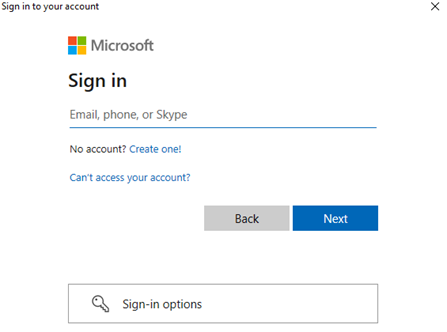
At this point you will be prompted to sign in, an account with the Intune Administrator role is sufficient, and the device hash will then be uploaded automatically. If MFA is enabled, you will be required to use it. (Always make sure to have MFA enabled in all your accounts)
Upon confirmation of the uploaded device hash details, run a sync in the Microsoft Endpoint Manager Admin Center and wait for your new device to appear.

Once the device is shown in your device list, and an autopilot profile is assigned, restarting the device will result in OOBE running through Windows Autopilot provisioning process.
 @M365Talks
This is great! Hopefully, you’ll be able to assign the group tag during this stage too soon.
LikeLike
You can you group tagging such as:
Get-WindowsAutoPilotInfo -Online -GroupTag “Hybrid”
LikeLike
Hi
Are we able to give a command to change the device name in Intune
LikeLike
Yes, you can always rename a device either by using powershell using the GraphAPI or the GUI.
https://docs.microsoft.com/en-us/mem/intune/remote-actions/device-rename
LikeLike
Thanks Bro.
It’s great and simple to find & upload the details.
LikeLike
This is great that you can assign the grouptag in the same command. Any way to also assign the user, or is that asking too much? 🙂
Get-WindowsAutoPilotInfo -Online -GroupTag “Hybrid”
LikeLike
In case anyone’s wondering about available parameters, check out the script @ https://www.powershellgallery.com/packages/Get-WindowsAutoPilotInfo/3.8/Content/Get-WindowsAutopilotInfo.ps1
.DESCRIPTION
This script uses WMI to retrieve properties needed for a customer to register a device with Windows Autopilot. Note that it is normal for the resulting CSV file to not collect a Windows Product ID (PKID) value since this is not required to register a device. Only the serial number and hardware hash will be populated.
.PARAMETER Name
The names of the computers. These can be provided via the pipeline (property name Name or one of the available aliases, DNSHostName, ComputerName, and Computer).
.PARAMETER OutputFile
The name of the CSV file to be created with the details for the computers. If not specified, the details will be returned to the PowerShell
pipeline.
.PARAMETER Append
Switch to specify that new computer details should be appended to the specified output file, instead of overwriting the existing file.
.PARAMETER Credential
Credentials that should be used when connecting to a remote computer (not supported when gathering details from the local computer).
.PARAMETER Partner
Switch to specify that the created CSV file should use the schema for Partner Center (using serial number, make, and model).
.PARAMETER GroupTag
An optional tag value that should be included in a CSV file that is intended to be uploaded via Intune (not supported by Partner Center or Microsoft Store for Business).
.PARAMETER AssignedUser
An optional value specifying the UPN of the user to be assigned to the device. This can only be specified for Intune (not supported by Partner Center or Microsoft Store for Business).
.PARAMETER Online
Add computers to Windows Autopilot via the Intune Graph API
.PARAMETER AssignedComputerName
An optional value specifying the computer name to be assigned to the device. This can only be specified with the -Online switch and only works with AAD join scenarios.
.PARAMETER AddToGroup
Specifies the name of the Azure AD group that the new device should be added to.
.PARAMETER Assign
Wait for the Autopilot profile assignment. (This can take a while for dynamic groups.)
.PARAMETER Reboot
Reboot the device after the Autopilot profile has been assigned (necessary to download the profile and apply the computer name, if specified).
LikeLike