Fastest way to capture and upload the hardware hashes into Intune AutoPilot (Microsoft Device Management #MEM)

We expect the vendors to provide the Windows Autopilot hardware hashes or onboard the devices directly into our tenant. However, that is not usually the case. While the process has improved over the years, there are situation where vendors may not be able to generate the hardware hashes on a timely manner, or not at all. That is why Windows Autopilot device registration can be done within your organization by manually collecting the hardware hashes and uploading this information in a comma-separated-value (CSV) file.

STOP THERE… that process has been updated and improved, making our life much easier. Thank to a newly available option as part of the Windows10 devices, you can manually generate the hashes and automatically upload the hashes to your tenant without the need exporting it into a .CSV file.

During the OOBE (Out of the Box Experience) you also can initiate the hardware hash upload by launching a command prompt (Shift+F10 at the sign in prompt), and using the following commands.

Prerequisite: Your device needs to be connected either a wired or wireless network with internet access.

Powershell.exe 
Install-Script -name Get-WindowsAutopilotInfo -Force
Set-ExecutionPolicy Unrestricted
Get-WindowsAutoPilotInfo -Online

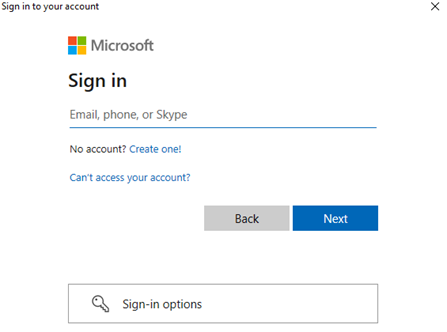
At this point you will be prompted to sign in, an account with the Intune Administrator role is sufficient, and the device hash will then be uploaded automatically. If MFA is enabled, you will be required to use it. (Always make sure to have MFA enabled in all your accounts)

Upon confirmation of the uploaded device hash details, run a sync in the Microsoft Endpoint Manager Admin Center and wait for your new device to appear.

Once the device is shown in your device list, and an autopilot profile is assigned, restarting the device will result in OOBE running through Windows Autopilot provisioning process.

Azure Application Proxy for RDS (Finally fully supported)

This is a continuation of one of my past blogs. Finally this came out, and I am excited about this announcement. The new Azure Application Proxy for RDS permits the clients to use App Proxy with RDS to reduce the attack surface of the RDS deployment by enforcing pre-authentication and Conditional Access policies like requiring Multi-Factor Authentication (MFA) or using a compliant device before users can access RDS, if using conditional access. App Proxy also doesn’t require to open inbound connections through your firewall, Yeah!!!.

To use the RDS web client with App Proxy, first you need to upgrade to App Proxy version, 1.5.1975.0. If you haven’t already, you will need to configure RDS to work with App Proxy. App Proxy will handle the internet facing component of your RDS deployment and protect all traffic with pre-authentication and any Conditional Access policies in place. For steps on how to do this, see my previous blog.

Why we should not use a free conferencing tools or services for business meetings

Due to the pandemic, companies are turning into online meetings and conference calls to continue operating. I have been working remotely over 10 year remotely and have used multiple different tools. Similarly, over the years I have been advising companies adopting cloud solutions in a secure way. Our focus is to protect the company’ data and our user’s privacy.

We need to understand that consumerization of IT is a real challenge for organizations, especially the ones with a high cyber security awareness. Hundreds of free conference and video call tools and services were released only last month. And users are adopting these tools in their personal life to continue practicing social distancing. The challenge comes, when users adopt these free tools for their personal use and start using them in the business world.

There is another conversation about IT leadership and how to understand the end-users need to be able to provide the right set of tools that fulfill the operation’s needs. But I will leave that for a different blog post. The real issue here, is that users need to stop using consumer-grade solution for business operations. Privacy, Security and Compliance is a real need for businesses.

I would like to list the reason why, as a cloud security architect, I would recommend implementing enterprise solutions such as Microsoft Teams. Disclaimer, I use Microsoft Teams, but Cisco, LogMeIn, Adobe, etc. offer also robust and secure solutions.

  • Data Loss Preventions (DLP): Teams integrates with Microsoft DLP allowing the organization to monitor and control the data shared by users or guests. This will prevent users to from sharing personal identifiable information (PII), U.S. Financial data. Similarly, we can enforce HIPPA, PCI, and other standards compliance.
  • Real-time safe-links and safe attachment: By using Teams all chat conversations, collaboration and shared information is protected by advanced protection system powered by AI in real time. Links or documents are reviewed by a spam filtering.
  • Archiving and Data Retention Policies: Teams allow administration to retain data following the compliance policies.
  • E-Discovery and Legal-hold Integration, Audits: Compliance teams and auditor can always perform E-Discovery searches during a litigation.
  • Authentication integrated with Azure AD: Admin can enhance their Teams security by implementing sign-in risk policies, conditional access policies and even implementing multi-factor authentication preventing un-authorized access to service.

To summarize my recommendation for SMBs. which are the most vulnerable entities to malware and cyber-attacks, is to stop using free software immediately and start looking into solutions that will protect your data and your user’s privacy.