Exchange Online Multi-Geo for data at-rest

Multinational companies with offices around the world often have a need to store their employee data at-rest in specific regions, in order to meet their data residency requirements. Multi-Geo enables a single Office 365 tenant to span across multiple Office 365 datacenter geographies (geos), which gives you the ability to store Exchange data, at-rest, on a per-user basis, in your chosen geos. The two main consideration are the following:

  1. Multi-Geo is currently available to customers with a minimum of 2,500 Office 365 services subscriptions and will have to be directly requested to Microsoft.
  2. The only available Geos are: Australia, Asia Pacific, Canada, European Union, France, India, Japan, Korea, United Kingdom, and United States.
New Windows Server 2019 challenges – Change Adapter Options

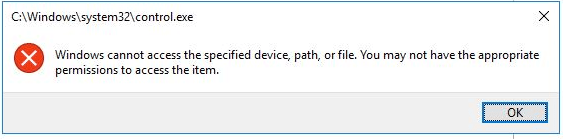
After installing my new Windows 2019 server for an Azure Backup Server, I noticed that I now longer have access to neither the Network Card settings nor the MMC console. I was getting a message”

Win2019 Error
Windows cannot access the specified device, path or file. You may not have the appropriate permissions to access the item.

After little research I found that the solution was a simple one.

  1. Elevated the command prompt (CMD) and run gpedit.msc
  2. Navigate to Computer Configuration
  3. Windows Settings -> Security Settings -> Local Policies -> Security Options
  4. Enable “User Account Control: Admin Approval Mode for the Built-in Administrator account”
  5. Reboot the server and try again.

Tune Exchange Online (O365) Performance

To improve the speed of migration and reduce your organization’s bandwidth constraints for Exchange Online, consider the following:

  • Reduce mailbox sizes and always use cached mode
    • Smaller mailbox size improves migration speed. Cached Exchange Mode enables a better experience when you use an Exchange account. In this mode, a copy of your mailbox is saved on your computer. This copy provides quick access to your data, and it is frequently updated with the server that runs Microsoft Exchange.
  • Use the mailbox move capabilities with an Exchange hybrid deployment:
    • With an Exchange hybrid deployment, offline mail (in the form of .OST files) does not require re-download when migrating to Exchange Online. This significantly reduces your download bandwidth requirements. A hybrid deployment provides the seamless look and feel of a single Exchange organization between an on-premises Exchange organization and Exchange Online in Microsoft Office 365. In addition, a hybrid deployment can serve as an intermediate step to moving completely to an Exchange Online organization.
  • Schedule mailbox moves to occur during periods of low Internet traffic and low on-premises Exchange use:
    • When scheduling moves, migration requests are submitted to the mailbox replication proxy and may not take place immediately.