Microsoft Teams Rich Text Editor

Following with our tip to better work from home using Microsoft Teams, today I would like to you show how to add rich text content to a chat or teams/channels.

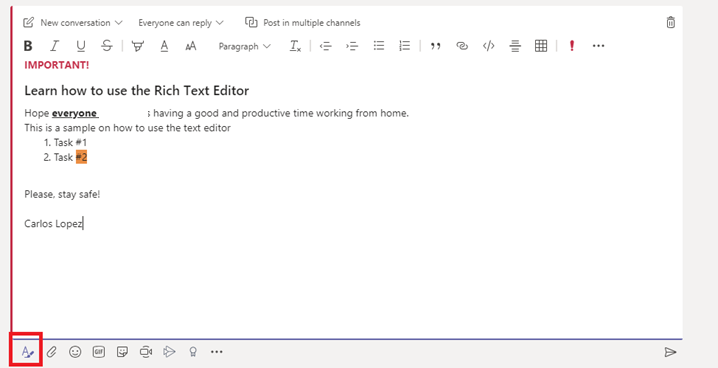
I have accidentally press “Send” while creating a message by just hitting “enter”. To avoid this, Microsoft Teams has a rich text editor that lets you add a multiple lines, a title, mark the message as important, and add other rich text options such as bullet points, highlighting etc.

You can access the Rich text Editing tool by clicking on the “A” symbol at the bottom left corner.


Best Practices for Microsoft Teams Conferencing

I have been working remotely for over 10 year. However, as we all embrace the use of video/audio conferencing during the COVID-19 pandemic, I would like to remind all users the best practices and online meetings etiquette.

  1. Use a Headset when possible: Wearing a headset in noisy, closed, crowded spaces can virtually eliminate distracting echoes and help other participants hear you more clearly. Even using a regular headphone (such as the one you use for your iPhone/Android) helps to minimize the echo and provide a better experience for all participants.
  2. Mute yourself when you are not speaking: Mute yourself when you are not speaking (especially if you are on a call with more than two participants). This will significantly reduce background noise for everyone on the call. Learn where the mute button is in the Teams app or the phone.
  3. Join only once the audio conference:  If you are using the Teams App for audio, refrain from dialing from your phone into the conference call at the same time. The audio will still come out via the computer speakers and feeding back into the phone creating a feedback loop.
  4. Use the Phone Audio when needed: If you are on the road with no internet access, or if you are experiencing slow internet connections, or simply the computer audio system is not working properly during a video conference. Remember to use the dial-in options using your phone or get the Teams app to call your number to join the audio portion of the conference. But please, don’t join the audio conference twice.
  5. Check you backlight and position: Having any backlight on a video call can negatively impact the quality by giving you a harsh silhouette effect. Whenever possible, try sitting with your back to a wall rather than a window or try lowering the shades.
  6. Test your internet connection and hardware ahead of time: Every attendee should make sure that they can log on properly using the app and test the microphone, camera and equipment in advanced.
  7. Resist to multitask: During a call, avoid multitasking at all costs. It’s professional video/audio etiquette to give all colleagues or participants your complete attention. Avoid the urge to check your email or phone while listening.

I personally use Microsoft Teams for all my conference calling and video conferencing. However, these best practices are applicable to any type of video conference system.

Best Practices to Manage Inactive Teams or Office 365 Groups

As a best practice to deploy Teams, I recommend all my clients to configure an expiration policy for inactive Teams or Office 365 Groups. With the increase in usage of Office 365 Groups, we will need to find a way to clean up unused groups. Expiration policies can help us remove inactive groups from the system and make things cleaner.

We can specify an expiration period on any inactive group that reaches the end of that period, and if not renewed, it will be deleted. The expiration period begins when the group is created, or on the date it was last renewed. Group owners will automatically be sent an email before the expiration that allows them to renew the group for another expiration interval. Groups that are actively in use are renewed automatically an no interaction from the owner is required. Any of the following actions will auto-renew a group:

  • Using SharePoint – view, edit, download, move, share, or upload files.
  • Using Outlook – join group, read or write group message from the group, and like a message (Outlook on the web).
  • Using Teams – visiting a team’s channel.

I recommend starting with 6 months (180 days) policy and adapt based on end-user feedback. Keep in mind that activating the policy will trigger a renewal message to all owner of inactive group.

If you have setup retention policy in Security and Compliance center for groups, expiration policy works seamlessly with retention policy. When a group expires, the group’s conversations in mailbox and files in the group site are retained in the retention container for the specific number of days defined in the retention policy.

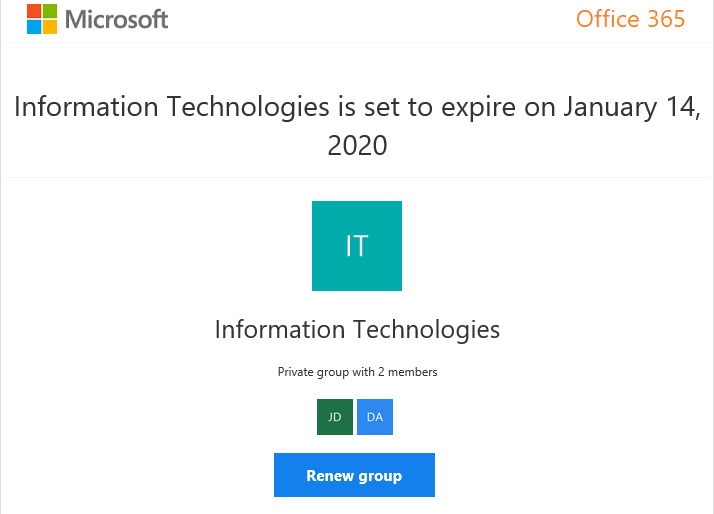
After activation of the policy, owners will receive the following message
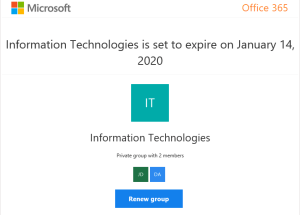
To enable the policy

  1. Open the Azure AD admin center with an account that is a global administrator in your Azure AD organization.
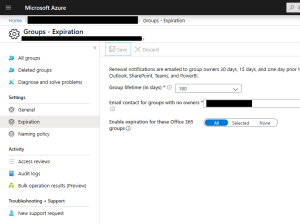
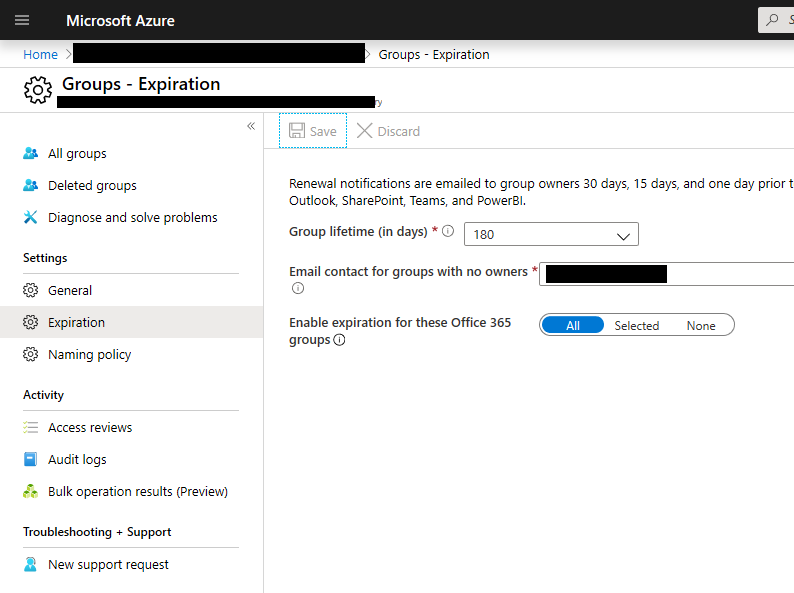
  2. Select Groups, then select Expiration to open the expiration settings.
  3. On the Expiration page, you can:
    1. Set the group lifetime in days. You could select one of the preset values, or a custom value (should be 31 days or more).
    2. Specify an email address where the renewal and expiration notifications should be sent when a group has no owner.
    3. Select which Office 365 groups expire. You can set expiration for:
      1. All Office 365 groups
      2. A list of Selected Office 365 groups
      3. None to restrict expiration for all groups
    4. Save your settings when you’re done by selecting Save